Blog / Guide
Recording remote testimonials for corporate video: how to do it with quality
How I prepare and direct testimonials recorded remotely for corporate video: what equipment I ask the interviewee for, how I handle light and sound from a distance and which mistakes to avoid so it doesn't look amateur.
More and more often I'm asked for testimonials recorded remotely: a client in another city, an executive who can't travel, an international success story. The final piece has to look as polished as if I had been behind the camera, even though the person is recording alone from their office or living room.
The problem isn't the distance. It's that most people record with their laptop in video-call mode, without thinking about light, sound or framing, and the result looks amateur next to the rest of the corporate video. Here I explain how I set up these recordings so the difference from an in-person interview is minimal.
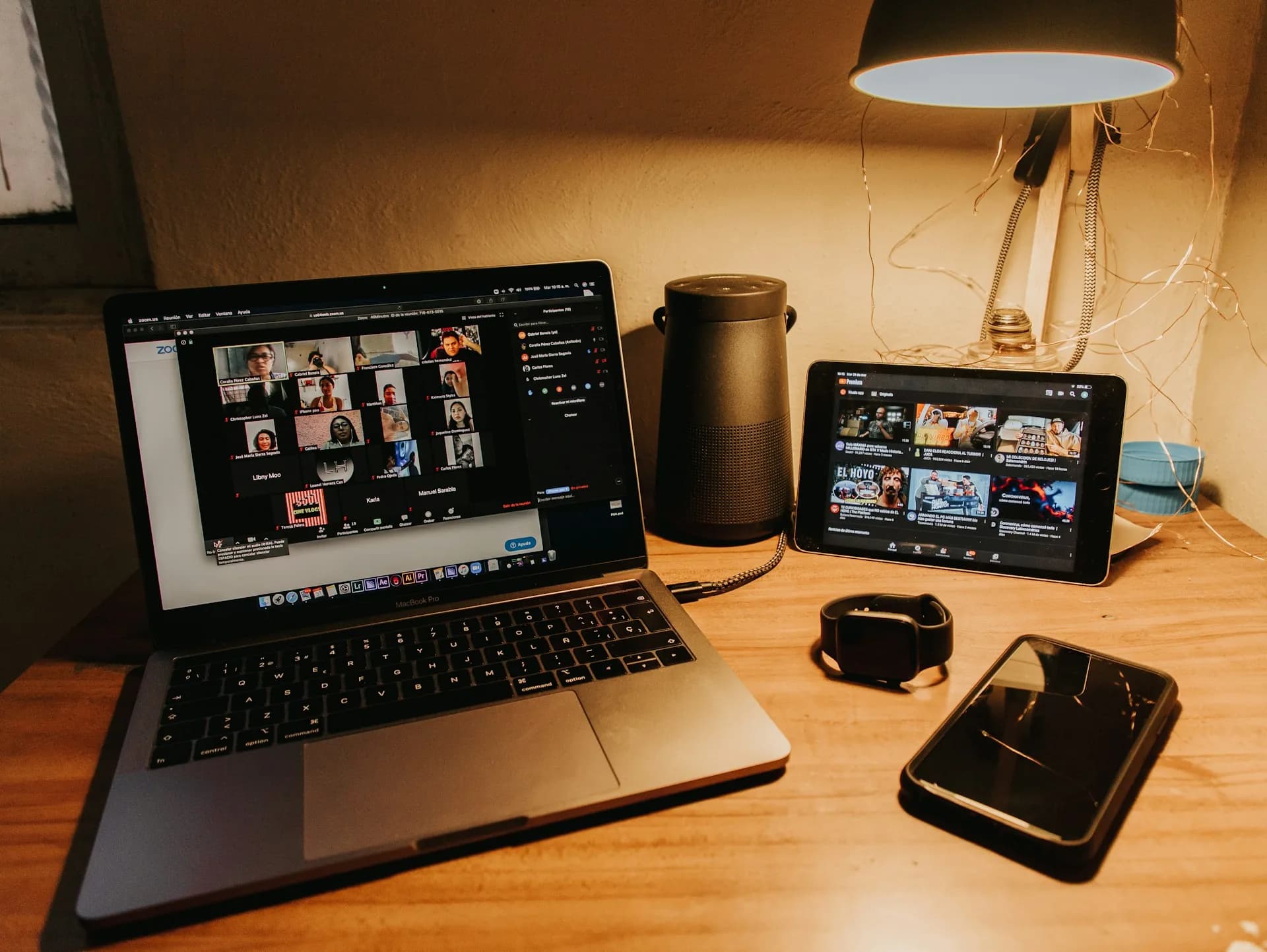
What a remote testimonial is and why it's requested more and more
A remote testimonial is an interview recorded without me being physically with the person being interviewed. They record from their own location, usually with a camera or their phone, following instructions I give them before and during the session by video call.
It's requested mostly for success stories with clients outside Madrid, testimonials from international partners, or executives whose schedules can't be fitted around a trip by me. Also when the budget doesn't cover travelling to record 90 seconds of testimonial.
The final quality depends almost entirely on the preparation beforehand. Remotely I can't fix anything during the recording apart from verbal instructions, so all the work is front-loaded into the briefing.
How I set it up so it doesn't look amateur
Minimum equipment on the interviewee's side
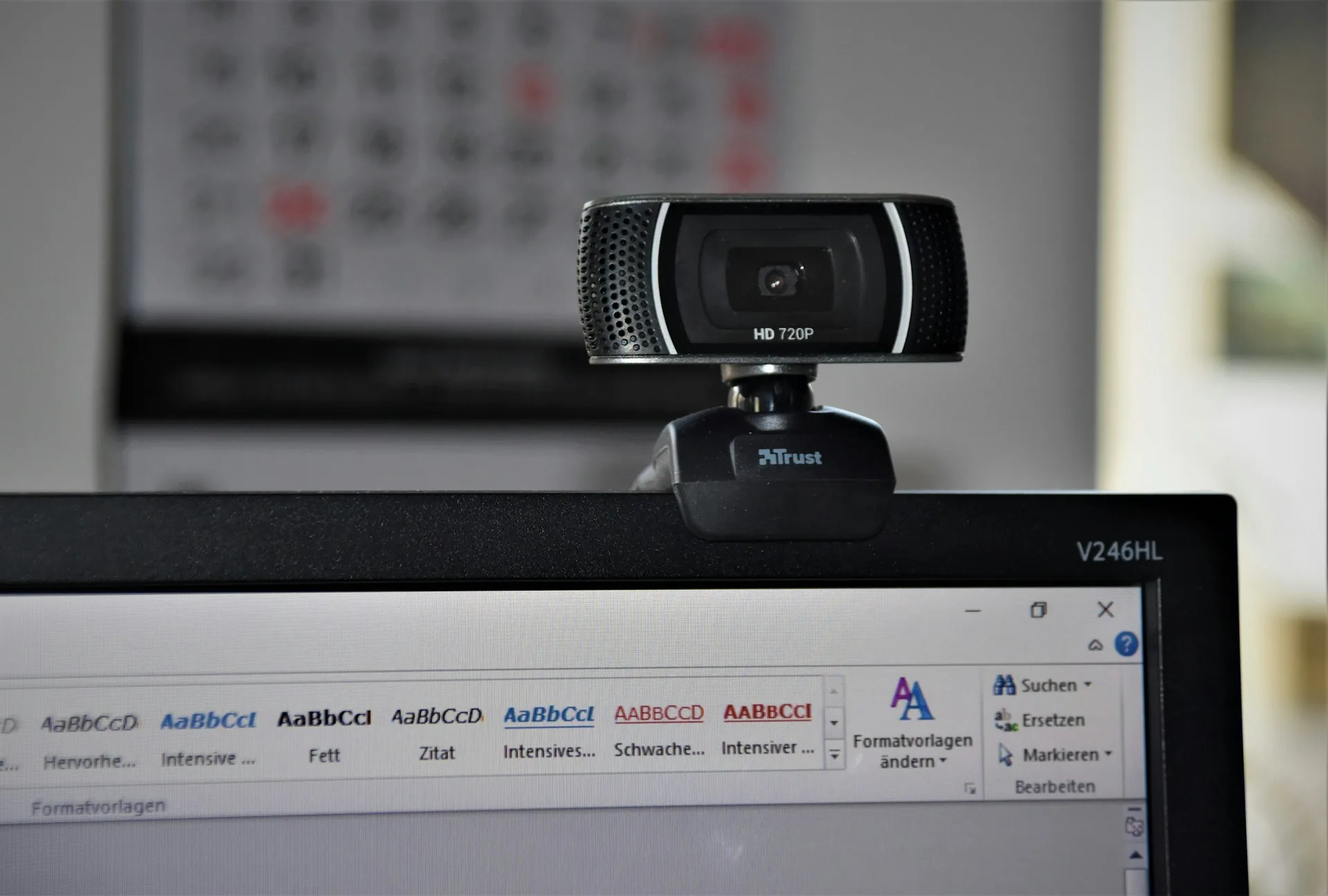
I ask for three basic things: a recent phone or a camera in landscape orientation at eye level, resting on something stable (a tripod, a pile of books, whatever they have to hand), and a wired lavalier microphone if they have one, or otherwise the headset with microphone that comes with their phone, which records better than a laptop's built-in microphone. If they have none of that, I use the audio recording of the video call itself as a backup and tell them so from the start.
Light and sound when you don't control the room
I ask them to sit facing a window, never with their back to it, and to switch off overhead lights that cast harsh shadows under the eyes. If they have a desk lamp, I position it over the video call until I get a soft frontal light. For sound, the priority is a small room with soft furnishings (curtains, sofa, rug): an empty room with bare walls sounds echoey and there's no way to fix it afterwards in post-production without it showing.
Script and direction from a distance
I prepare short questions beforehand, one at a time, and send them with plenty of notice so the person doesn't have to improvise on the spot. During the recording I supervise by video call while they record locally with an app like Riverside, which uploads the file in high quality afterwards, instead of relying on the video call's own compression. I cut between questions to give directions, just as I would on an in-person shoot.
Common mistakes
- Recording directly from Zoom or Meet without a local recording tool: the video call's compression is very noticeable in the final result.
- Letting the person sit with a huge window behind them: the camera exposes for the background and the face ends up backlit.
- Not testing the audio before starting: a badly connected lavalier mic is discovered halfway through the recording, when it's too late.
- Asking for long, improvised answers without short supporting questions: remotely it's harder to cut and repeat without the cut showing.
- Not recording a safety take on the phone as a backup, in case the recording app fails halfway through the session.
- Mixing remote testimonials with in-person ones without making sure the image quality is similar enough between the two.
Frequently asked questions
Can you tell the difference between a remote testimonial and an in-person one?
With good preparation, very little. Light and sound are the factors that give away a remote recording most, not camera resolution. If those two are taken care of, the result blends in well with the rest of the video.
Which app do you recommend for recording remote testimonials?
I use Riverside when I can, because it records each track locally and uploads it in high quality afterwards, without depending on the connection during the call. If the interviewee doesn't want to install anything, Zoom with high-quality cloud recording is plan B.
Do I need to send equipment to the interviewee?
Almost never. A phone from the last four or five years and an entry-level lavalier microphone are usually enough. I only send equipment if it's a very important client and I want to control every last detail.
How long does a remote testimonial session last?
Between 30 and 45 minutes including light and sound tests, even though the final testimonial uses only 2 or 3 minutes of that material. As with in-person shoots, most of the time goes on finding natural answers, not on the recording itself.
If you have a testimonial to record with someone who can't come to Madrid, tell me about it via /en/contact and I'll tell you how to set it up so it fits with the rest of your corporate video.